When working with XAML, especially if the view has a list of items, it can be very hard to tweak the view so it looks right. Tasks like adjusting margins, the position of elements, or any kind of style change can become pretty tedious.
This is an example of a view containing a ListView without sample data in the design view:
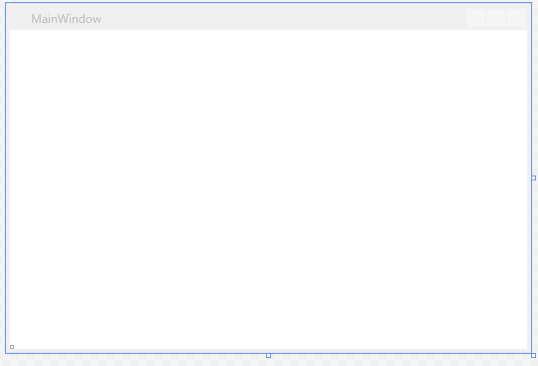
The image is the design view of code like this:
<ListBox ItemsSource="{Binding SampleData}">
    <ListBox.ItemTemplate>
        <DataTemplate>
            <TextBlock Text="{Binding Name}"></TextBlock>
        </DataTemplate>
    </ListBox.ItemTemplate>
</ListBox>
This example illustrates the problem pretty well: you can’t see anything. It’s a very simple XAML fragment and it isn’t hard to guess what will be drawn, but as soon as things get a bit more complicated, working blind isn’t pleasant at all. Since we don’t have sample data, we can’t tell how the list items will be displayed, and any change is made blindly. For small changes we fall back on trial and error, but that’s a very clumsy and slow solution. To stop working blind we need to do two things:
Step 1
Tell the view to create an instance of the ViewModel in the design view:
xmlns:mc="http://schemas.openxmlformats.org/markup-compatibility/2006"
xmlns:d="http://schemas.microsoft.com/expression/blend/2008"
xmlns:wpfApplication1="clr-namespace:WpfApplication1"
mc:Ignorable="d"
d:DataContext="{d:DesignInstance Type=wpfApplication1:SampleViewModel, IsDesignTimeCreatable=True}"
The key is the last line. The ViewModel type is SampleViewModel, and setting IsDesignTimeCreatable to true enables creating an instance of the ViewModel in the design view.
Step 2
To give the ViewModel sample data, all you need is to assign the data in the constructor. In the sample view, the constructor can call a method that does something like this:
if (DesignerProperties.GetIsInDesignMode(new DependencyObject()))
{
    var sampleData = new List<ClientData>();
    sampleData.Add(new ClientData() { Name = "Sample Client 1", Email = "email@domain.com" });
    sampleData.Add(new ClientData() { Name = "Sample Client 2", Email = "email@domain.com" });
    sampleData.Add(new ClientData() { Name = "Sample Client 3", Email = "email@domain.com" });
    sampleData.Add(new ClientData() { Name = "Sample Client 4", Email = "email@domain.com" });
    sampleData.Add(new ClientData() { Name = "Sample Client 5", Email = "email@domain.com" });
    sampleData.Add(new ClientData() { Name = "Sample Client 6", Email = "email@domain.com" });

    SampleData = new ObservableCollection<ClientData>(sampleData);
}
It’s very important to fill in the data only in the design view, so it doesn’t get filled in while the application is running. That’s why the if on the first line is there.
Once this is done, every data binding with the ViewModel will show the sample data in the design view, so you can adjust styles without having to run the application. For example:
<Window x:Class="WpfApplication1.MainWindow"
        xmlns="http://schemas.microsoft.com/winfx/2006/xaml/presentation"
        xmlns:x="http://schemas.microsoft.com/winfx/2006/xaml"
        xmlns:mc="http://schemas.openxmlformats.org/markup-compatibility/2006"
        xmlns:d="http://schemas.microsoft.com/expression/blend/2008"
        xmlns:wpfApplication1="clr-namespace:WpfApplication1"
        mc:Ignorable="d"
        d:DataContext="{d:DesignInstance Type=wpfApplication1:SampleViewModel, IsDesignTimeCreatable=True}"
        Title="MainWindow" Height="350" Width="525">
    <Grid>
        <ListBox ItemsSource="{Binding SampleData}">
            <ListBox.ItemTemplate>
                <DataTemplate>
                    <StackPanel Orientation="Horizontal">
                        <TextBlock Text="{Binding Name}"></TextBlock>
                        <TextBlock Text="{Binding Email}" Margin="15,0,0,0"></TextBlock>
                    </StackPanel>
                </DataTemplate>
            </ListBox.ItemTemplate>
        </ListBox>
    </Grid>
</Window>
And this is how it would look in the design view:
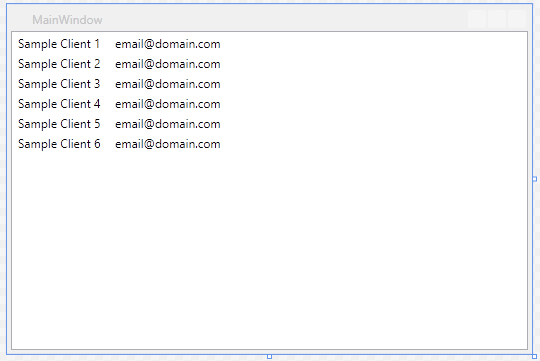
If you don’t want to put the sample data in your ViewModel class, you can always create a specific class for the design-time ViewModel. You just have to change the DesignInstance value in the XAML file and give it the name of the design-view type. That said, you’d better use interfaces or something similar to make sure both ViewModels (the design-view one and the one that will actually run) share the same contract.
IMPORTANT: For the views to pick up the sample data, we have to build the project so the ViewModel gets compiled. If we change the ViewModel’s sample data set, we’ll have to build again, so the best thing is to first create a decent sample data set and then focus on working on the view.